

Solutions Architect at GitLab | Ex-Red Hat · Agentic AI for SDLC · DevSecOps · Hybrid Cloud & Automation | Helping teams build …

Streamline Your API Testing with Microcks GitLab Components
In today’s fast-paced development environment, API testing and contract validation are critical to shipping reliable software. But how do you efficiently integrate these practices into your GitLab CI/CD pipelines without complex configurations? That’s exactly what we’re solving with the Microcks GitLab Components!
A reusable CI/CD components is now available in the GitLab CI/CD Catalog. These components make it incredibly easy to import API artifacts and run contract conformance tests directly from your pipeline—with just a few lines of YAML!
By leveraging GitLab Components, we’ve made Microcks integration as simple as including a component reference in your pipeline configuration. Let’s see how!
What You Can Do with Microcks GitLab Components
The Microcks GitLab Components provide two main capabilities:
- Import API Artifacts - Push your OpenAPI, AsyncAPI, Postman collections, and other specifications into your Microcks instance
- Run Contract Tests - Validate that your deployed API endpoints conform to their specifications
Getting Started
Prerequisites
Before you begin, make sure you have:
- A running Microcks instance with its API URL (e.g.,
https://microcks.apps.acme.com/api/) - A Service Account configured in your Microcks Keycloak realm
- The Service Account’s
client_idandclient_secret
Pro tip: Store your credentials as masked GitLab CI variables for security! Navigate to Settings → CI/CD → Variables in your GitLab project and add:
MICROCKS_URL→ Your Microcks API endpointKEYCLOAK_CLIENT_ID→ Service Account client IDKEYCLOAK_CLIENT_SECRET→ Service Account client secret
Finding the Components in the Catalog
The Microcks GitLab Components are published in the GitLab CI/CD Catalog
From there, you can browse documentation, view available versions, and see usage examples. Let’s explore how to use each component!
Importing API Artifacts into Microcks
The first component, microcks-import, allows you to push your API specifications into Microcks. This is perfect for keeping your mocks in sync with your latest API definitions.
Here’s a simple example:
# .gitlab-ci.yml
include:
  - component: gitlab.com/microcks-cncf/microcks-community/microcks-gitlab-components/microcks-import@~latest
    inputs:
      specs: "specs/weather-forecast-openapi.yml:true,specs/weather-forecast-postman.json:false"
      microcks_url: "https://microcks.apps.acme.com/api/"
      keycloak_client_id: $KEYCLOAK_CLIENT_ID
      keycloak_client_secret: $KEYCLOAK_CLIENT_SECRET
      stage: import

stages:
  - import
Some important things to notice here:
- You can customize the
stagename to fit your pipeline structure - Using
@~latestensures you always get the most recent component version
Once this runs, your API specifications will be imported into Microcks, and your development team can immediately start consuming mock endpoints!
Running Contract Conformance Tests
The second component, microcks-test, runs contract tests against your deployed API endpoints. This ensures your implementation matches your specification—automatically catching breaking changes before they reach production!
Here’s how to use it:
# .gitlab-ci.yml
include:
  - component: gitlab.com/microcks-cncf/microcks-community/microcks-gitlab-components/microcks-test@~latest
    inputs:
      api_name_version: "Weather Forecast API:1.0.0"
      test_endpoint: "https://my-weather-api.example.com"
      test_runner: "OPEN_API_SCHEMA"
      microcks_url: "https://microcks.apps.acme.com/api/"
      keycloak_client_id: $KEYCLOAK_CLIENT_ID
      keycloak_client_secret: $KEYCLOAK_CLIENT_SECRET
      stage: test
      wait_for: "15sec"

stages:
  - test
Putting It All Together: A Pipeline sample
Let’s see how both components work together in a real-world pipeline. The following example demonstrates how to import a local spec file, and how to run the test against a running API.
To run this example, you will need to:
- Configure
$MICROCKS_DNand$PASTRY_API_DNas GitLab CI variable. - Run the Pastry API
- Configure a running Microcks instance in Dev mode
- Load the Pastry sample
# .gitlab-ci.yml
include:
  - component: $CI_SERVER_FQDN/microcks-cncf/microcks-community/microcks-gitlab-components/microcks-import@~latest
    inputs:
      specs: "samples/HelloService.postman.json:true"
      microcks_url: "http://$MICROCKS_DN:8080/api/"
      stage: import
  - component: $CI_SERVER_FQDN/microcks-cncf/microcks-community/microcks-gitlab-components/microcks-test@~latest
    inputs:
      api_name_version: "API Pastry - 2.0:2.0.0"
      test_endpoint: "http://$PASTRY_API_DN/"
      test_runner: "OPEN_API_SCHEMA"
      microcks_url: "http://$MICROCKS_DN:8080/api/"
      stage: test

stages:
  - import
  - test
Here’s the resulting pipeline in GitLab, with the import stage followed by the test stage:
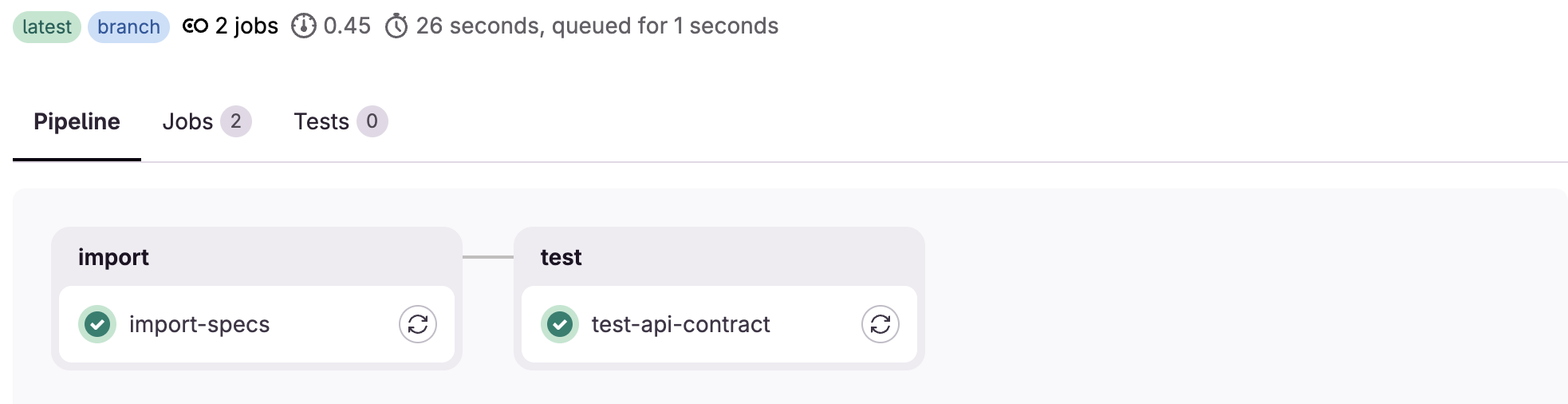
If the contract test fails, the pipeline stops, preventing broken APIs from reaching production. It’s continuous verification in action!
Version Pinning for Stability
While @~latest is great for always getting improvements, you might want stability in production pipelines. Simply specify a version:
include:
  - component: gitlab.com/microcks-cncf/microcks-community/microcks-gitlab-components/microcks-import@0.0.2
This ensures your pipeline behavior remains consistent even as new component versions are released.
Under the Hood
Behind the scenes, these components leverage the Microcks CLI.
The beauty of GitLab Components is that all this complexity is abstracted away—you just declare what you want, and the component handles the rest!
Wrap-Up
With the Microcks GitLab Components, integrating API mocking and contract testing into your CI/CD pipelines has never been easier. You get:
- Simple integration - Just include the component, no complex scripts
- Reusable configuration - Use across all your projects
- Version control - Pin versions or stay on latest
Ready to give it a try? Check out the components in the GitLab CI/CD Catalog and start mocking!
Improve the GitLab Components
The Microcks GitLab Components are designed to cover the most common use cases, but we know there’s always room for improvement! The underlying Microcks CLI supports many advanced options and flags that aren’t yet exposed as component inputs. Feel free to contribute!